LinkedIn Sales Navigator Plans and Pricing: A Guide
LinkedIn Sales Navigator is LinkedIn's paid prospecting tool built for B2B sales teams. It sits on top of the regular LinkedIn experience but adds search filters, lead lists, account alerts, and InMail credits that the free version does not offer. The platform comes in three tiers: Core, Advanced, and Enterprise. Each tier changes what your reps can do and how much you pay per seat. LinkedIn does not publish list prices for Advanced or Enterprise, which means you will negotiate with their sales team and the final cost depends on contract length, seat count, and any add-ons. This guide walks through what each plan includes, how pricing tends to work, and what to think about before signing a contract. The goal is to help you figure out whether Sales Navigator is worth the spend for your team, and if so, which tier makes sense given your deal cycle, team size, and outbound strategy.
Learn about LinkedIn Sales Navigator plans and pricing to make an informed decision for your sales team
Introduction to LinkedIn Sales Navigator
LinkedIn Sales Navigator is built for sales teams that need to find, track, and engage potential buyers on LinkedIn. The free LinkedIn account lets you search for people and companies, but the filters are basic and you cannot save searches or get alerts when a prospect changes jobs.
- You get advanced search filters that let you narrow by company headcount, industry, job seniority, geography, and recent activity.
- You can build lead lists and account lists, and the platform will suggest similar companies or contacts based on what you have saved.
- The tool also gives you InMail credits, which let you message people outside your network.
Sales Navigator adds those capabilities and more. This matters because cold outreach on LinkedIn usually starts with a connection request, but InMail lets you send a direct message without waiting for acceptance. The number of InMail credits varies by plan. Sales Navigator is not a CRM.
It does not manage your pipeline or track deals through stages. It is a prospecting and intelligence layer that sits in front of your CRM. Many teams pipe Sales Navigator data into Salesforce or HubSpot through native integrations, but the core value is in the search, alerts, and messaging features.
If your team already has a CRM and needs better outbound sourcing, Sales Navigator fills that gap. If you do not have a clear outbound process, buying Sales Navigator will not fix that problem on its own.
LinkedIn Sales Navigator Plans
LinkedIn offers three Sales Navigator plans: Core, Advanced, and Enterprise. The Core plan is the entry point. It includes advanced search with all standard filters, saved lead and account lists, lead recommendations, and a set number of InMail credits per month.
- Core also includes CRM sync if you use Salesforce or Microsoft Dynamics, though the sync is one-way in some configurations.
- This plan works for individual reps or small teams that need better search and basic list management without a lot of administrative overhead.
- The Advanced plan adds features aimed at teams that need more control and visibility.
You get additional InMail credits, advanced search filters that go deeper on intent signals and company growth metrics, and team-based lead and account sharing. Advanced also includes tools for sales managers to see what their reps are doing inside the platform, which helps with coaching and accountability.
If your team has more than a handful of reps and you want visibility into activity, Advanced is the tier where those features start to appear. The Enterprise plan is the top tier. It adds single sign-on, advanced admin controls, and deeper reporting.
Enterprise serves large organizations with dedicated sales operations teams that need to manage hundreds of seats, enforce data governance policies, and track platform usage across regions. Enterprise contracts are negotiated directly with LinkedIn and include custom terms. Companies with fewer than 50 sales reps usually do not need Enterprise.
Enterprise may make sense for a global team with strict IT requirements.
Pricing Options and Tiers
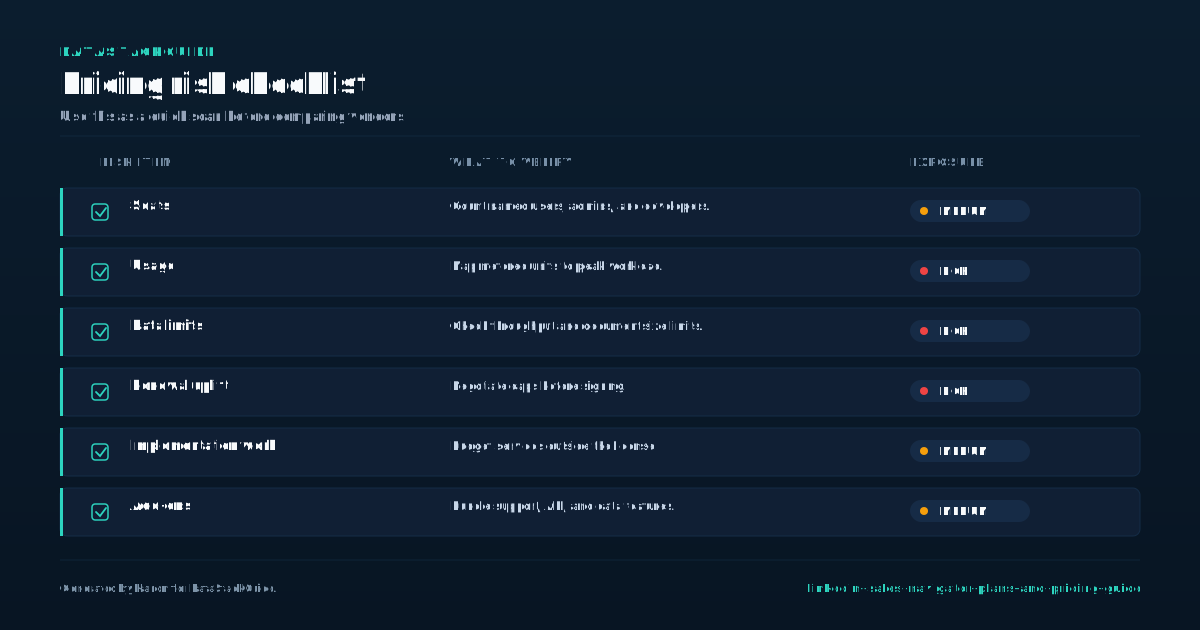
LinkedIn does not publish pricing for Advanced or Enterprise on their website. The Core plan is the only one with a publicly visible price, and even that changes based on whether you bill annually or monthly.
- Based on what LinkedIn shows on their plans page, Core runs roughly $99 per month if billed annually, or $119 per month if billed monthly.
- These numbers can shift with promotions or regional pricing, so treat them as a starting point rather than a fixed rate.
- Advanced and Enterprise pricing requires a conversation with LinkedIn's sales team.
From what operators report in public forums and industry discussions, Advanced typically costs somewhere between $1,600 and $2,000 per seat per year, though this varies based on contract length and volume discounts.
Enterprise pricing is higher and depends on the number of seats, the length of the contract, and any add-ons like extra InMail credits or premium support packages. When you negotiate, ask about a few things. First, ask whether the quoted price includes all features or whether some capabilities are sold as add-ons.
Second, ask about the InMail credit allowance per tier and whether unused credits roll over. Third, ask about the contract renewal terms and whether LinkedIn will lock in pricing for multiple years.
LinkedIn often discounts annual contracts compared to monthly billing, so if you are confident the tool will stick, an annual deal will save money. Just make sure you have run a trial first so you are not locked into a year of a tool your team does not use.
Key Features and Benefits
The main reason teams buy Sales Navigator is the search. The advanced search filters let you build targeted lists of prospects by company size, industry, job function, seniority, and geography.
You can also filter by recent activity on LinkedIn, such as whether a person has posted in the last a short trial window or changed jobs recently.
- These filters matter because they let your reps focus on accounts that are more likely to respond, rather than blasting connection requests at everyone with a matching job title.
- Based on the leads and accounts you save, Sales Navigator suggests similar prospects.
- This can be useful for expanding a target list, but the quality of recommendations depends on how well you have defined your ideal customer profile.
Lead recommendations are another feature. If your saved lists are messy, the recommendations will be messy too. Account alerts notify you when something changes at a company you are tracking. This includes leadership changes, funding announcements, and company size shifts.
For outbound teams, these alerts give you a reason to reach out at a moment when a prospect might be more receptive. Instead of a generic cold message, your rep can reference a recent funding round or a new executive hire. InMail credits are the messaging currency.
Each plan includes a monthly allowance, and you can send direct messages to people outside your network. InMail response rates vary widely depending on your message quality and the recipient's engagement level. The credits do not guarantee replies, and unused credits may or may not roll over depending on your plan.
Check the terms before you assume you can stockpile them.
Integration with LinkedIn's Core Platform
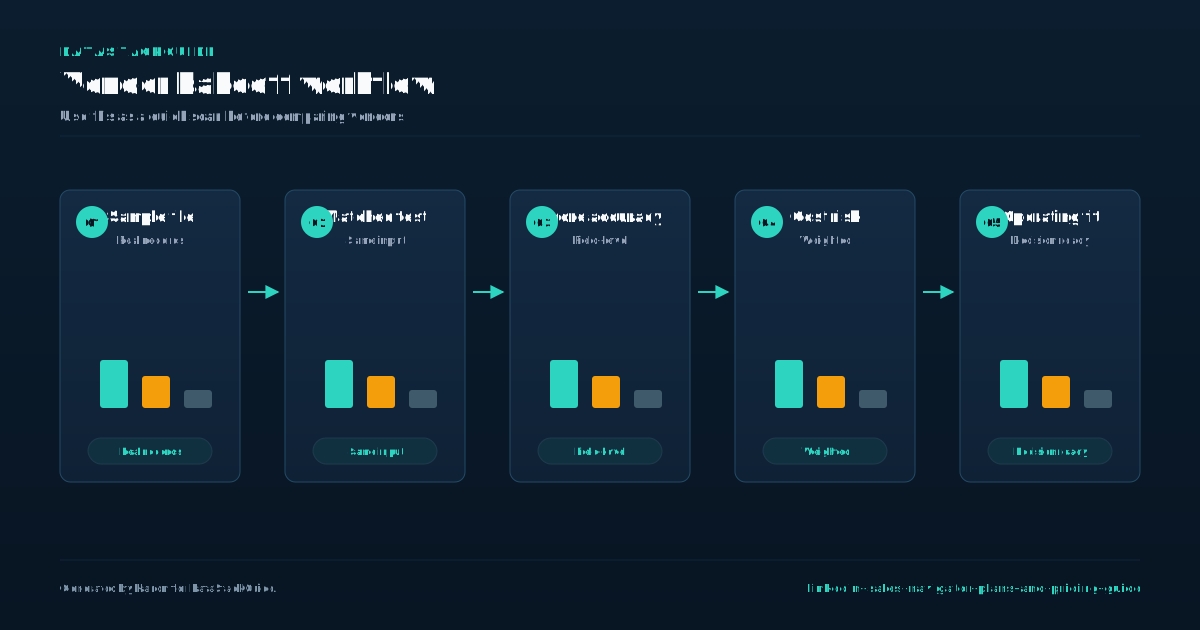
Sales Navigator is not a separate product that lives outside LinkedIn. It runs on top of the same platform, which means your reps keep their existing LinkedIn identity, connections, and profile. When a rep sends an InMail or views a profile, that activity shows up the same way it would on the free version.
- The difference is that Sales Navigator adds a separate interface for search, lead lists, and account tracking that sits alongside the regular LinkedIn experience.
- The CRM integration is where things get more complicated.
- Sales Navigator connects with Salesforce, Microsoft Dynamics, and a few other platforms.
The integration lets you push lead and account data from Sales Navigator into your CRM, and in some configurations it can pull CRM data back into Sales Navigator to keep your lists synced. The quality of this integration depends on your CRM setup and how clean your data is.
If your CRM is full of duplicate accounts or outdated contacts, the sync will not fix that. You need to clean your data before turning on the integration. One thing to watch: Sales Navigator does not automatically log all activity back to your CRM. Reps may still need to manually log calls, emails, and meetings.
The integration handles lead and account data, but it is not a full activity tracking system. If your team relies on CRM activity logging for pipeline reviews and forecasting, make sure you understand what Sales Navigator syncs and what it does not before you roll it out. Test the integration with a small group first.
Evaluating Your Sales Team's Needs
Before you pick a plan, figure out what problem you are trying to solve. If your reps are spending hours manually searching LinkedIn and building lists in spreadsheets, Sales Navigator Core will save time.
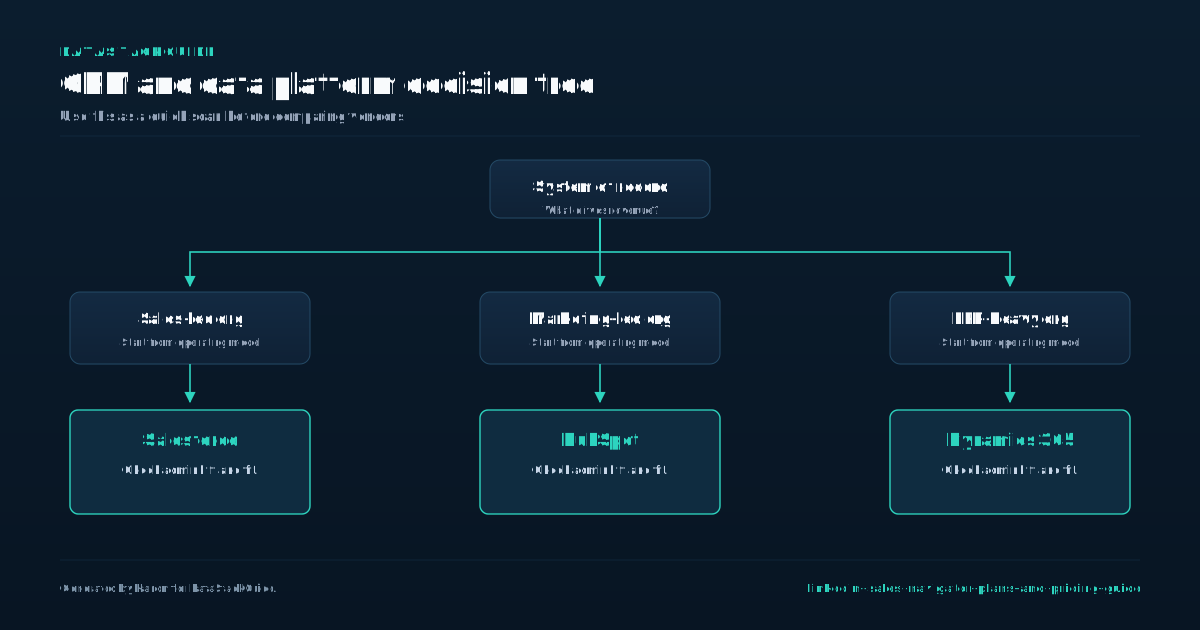
- If your team has grown past five or six reps and you need shared lead lists and manager visibility, Advanced is the better fit.
- If you have a large sales org with IT requirements around single sign-on and data governance, Enterprise is the only tier that covers those needs.
- Start by looking at your current outbound process.
Where do your reps find prospects today? If they are using LinkedIn free search, ZoomInfo, Apollo, or another data provider, what does Sales Navigator add that those tools do not? For many teams, the value is the combination of search plus InMail plus the alerts.
If you already have a strong data provider and your reps do not use LinkedIn for outreach, Sales Navigator may be redundant. Think about seat count. LinkedIn sells Sales Navigator per seat, so the cost scales linearly with the number of users.
If you have 50 reps, even a small per-seat price difference adds up fast. Consider buying seats only for the reps who will actually use the tool. Some companies buy Sales Navigator for their full sales team and find that only half the reps log in regularly.
Start with a smaller group, measure usage, and expand if it makes sense. Also think about your deal cycle. If your sales cycle is short and transactional, the alerts and relationship tracking features may be overkill. If your cycle is long and relationship-driven, those same features are where the value lives.
Implementation and Onboarding
Setting up Sales Navigator is usually easier than getting your team to use it consistently. LinkedIn provides onboarding resources including video tutorials, live webinars, and a help center. These cover the basics: how to build a search, how to save leads, how to send InMail, and how to set up CRM sync.
- The training materials are decent for individual reps but thin on team-level workflow design.
- The real work of implementation is defining your team's process.
- Before you turn on licenses, decide how your reps will use Sales Navigator day to day.
Will they build target account lists in the platform or import them from your CRM? Who owns list creation, the rep or the sales ops team? How many InMail messages should each rep send per week, and what should those messages say?
Without answers to these questions, reps will open the tool a few times and then stop using it. CRM integration setup is the other piece. If you are syncing with Salesforce or Dynamics, your sales ops or IT team will need to configure the connection, map fields, and test the data flow.
Plan for a few weeks of setup time if your CRM is complex. If you skip this step and let reps figure it out on their own, you will end up with inconsistent data and duplicate records. Set a usage expectation early.
Track how often reps log in, how many leads they save, and how many InMail messages they send. If a rep has not opened Sales Navigator in two weeks, that is a coaching conversation, not a technology problem. Adoption fails when managers do not enforce usage.
Decision Framework
To decide which Sales Navigator plan to buy, work through a simple framework. First, count the reps who will use the tool. If it is one to five reps doing their own prospecting, Core is enough.
- If you have six or more reps and need shared lists plus manager visibility, move to Advanced.
- If you have a large team with IT requirements like single sign-on and custom admin controls, Enterprise is the only option.
- If LinkedIn is a primary outreach channel for your team, Sales Navigator pays for itself through better targeting and InMail.
Second, look at your outbound channel mix. If your team primarily cold calls or uses email and LinkedIn is a secondary channel, the ROI is weaker and you should start with a small pilot before committing to a large contract. Third, evaluate your data stack.
If you already pay for ZoomInfo, Apollo, or a similar tool, check for overlap. Some teams use Sales Navigator for relationship building and alerts while using a separate tool for contact data enrichment. Others find that Sales Navigator alone covers their needs. Do not buy overlapping tools without a clear reason for each one.
Fourth, negotiate. LinkedIn expects you to negotiate on Advanced and Enterprise. Ask for a discount on annual billing, ask for extra InMail credits, and ask for a shorter initial term if you are not sure the tool will stick. Run a 30-day trial with a small group before signing anything.
If the trial shows clear value, commit. If it does not, you have saved yourself a year of per-seat costs on a tool nobody uses.
Sources
Frequently Asked Questions
What is the difference between LinkedIn Sales Navigator and LinkedIn's core platform?
Sales Navigator adds advanced search filters, saved lead and account lists, alerts for company changes, and InMail credits. The free LinkedIn account has basic search and no alert or list features.
How many users can be supported on each plan?
All three plans support multiple users. Core works for individuals or small teams, Advanced adds team sharing and manager visibility, and Enterprise is built for large organizations with hundreds of seats.
Can I customize my plan to fit my sales team's specific needs?
You cannot mix and match features across tiers, but you can buy add-ons like extra InMail credits. For custom terms on seat count and pricing, you need to negotiate with LinkedIn's sales team on Advanced or Enterprise.
What kind of support and training does LinkedIn offer for Sales Navigator?
LinkedIn provides video tutorials, live webinars, a help center, and customer support. Enterprise plans include a dedicated customer success manager. The training covers platform features but not sales process design.
Can I try LinkedIn Sales Navigator before committing to a plan?
Yes, LinkedIn offers a free trial, typically a short trial window, for Sales Navigator Core. You can test search, lists, and InMail during the trial. Advanced and Enterprise trials may be available through your LinkedIn account rep.

Rome Thorndike
Rome Thorndike is the CEO & Founder of Provyx, which provides GTM intelligence and data validation for healthcare companies, including EngagedMD and BTL Industries. He led sales at Datajoy, acquired by Databricks, and sold analytics and enterprise platforms at Microsoft and Salesforce.
Connect on LinkedIn