LinkedIn Sales Navigator Team Pricing Guide: Understanding Your Options
LinkedIn Sales Navigator is LinkedIn's premium sales tool, built to help teams find accounts, track leads, and send messages outside their immediate network. The pricing structure is not public in the way most SaaS tools publish their plans. LinkedIn requires you to talk to a sales rep for anything beyond the individual Advanced plan, and the Team and Enterprise tiers come with custom quotes based on seat count, contract length, and add-on features. This creates a problem for operators trying to budget. You cannot simply look at a pricing page and know what 15 seats will cost your company next year. This guide breaks down what is publicly known about Sales Navigator team pricing, how the plans differ, what features actually matter for a sales team, and how to evaluate whether the tool justifies its cost. We will keep the focus on practical decision-making rather than feature lists copied from the vendor's marketing pages.
Get a clear understanding of LinkedIn Sales Navigator team pricing and learn how to choose the right plan for your sales team
Introduction to LinkedIn Sales Navigator
LinkedIn Sales Navigator sits on top of the regular LinkedIn experience and adds a layer of sales-specific search, lead tracking, and messaging tools.
- The product comes in three main tiers: Advanced, Advanced Plus, and Enterprise.
- The Advanced plan serves individual sellers or very small teams.
- Advanced Plus is what most people mean when they talk about the team plan, since it includes shared lists, team collaboration features, and administrative controls.
The core value proposition is simple: LinkedIn has a massive database of professionals and companies, and Sales Navigator gives your team better tools to search that database, save lists of target accounts, and send direct messages to people outside your first-degree connections through InMail credits.
Enterprise adds deeper integrations, more InMail credits, and dedicated customer success support. The challenge for anyone evaluating pricing is that LinkedIn does not publish exact per-seat costs for the team and enterprise tiers.
You can find the Advanced plan price listed on the site, but anything beyond that requires a conversation with a LinkedIn account executive. This means pricing varies based on negotiation, contract length, and how many seats you commit to.
Some companies report paying less per seat than others because they negotiated multi-year contracts or bundled with other LinkedIn products. You should treat published individual pricing as a ceiling, not a fixed rate, and plan to negotiate when you get to the team tier.
Pricing Plans for Teams
The Advanced Plus plan, which is the primary team offering, includes everything in the Advanced individual plan plus features designed for group work. Those team features include shared lead and account lists, CRM sync capabilities, role-based permissions, and reporting dashboards that show how your team is using the tool.
- You also get more InMail credits per seat than the individual plan provides.
- Pricing for Advanced Plus is not publicly listed.
- LinkedIn directs you to contact sales for a quote, which means you are entering a negotiation rather than picking a price from a menu.
Based on what operators have reported in public forums and procurement discussions, the per-seat cost for Advanced Plus generally runs higher than the individual Advanced plan, sometimes significantly so when you factor in the minimum seat commitments LinkedIn often requires.
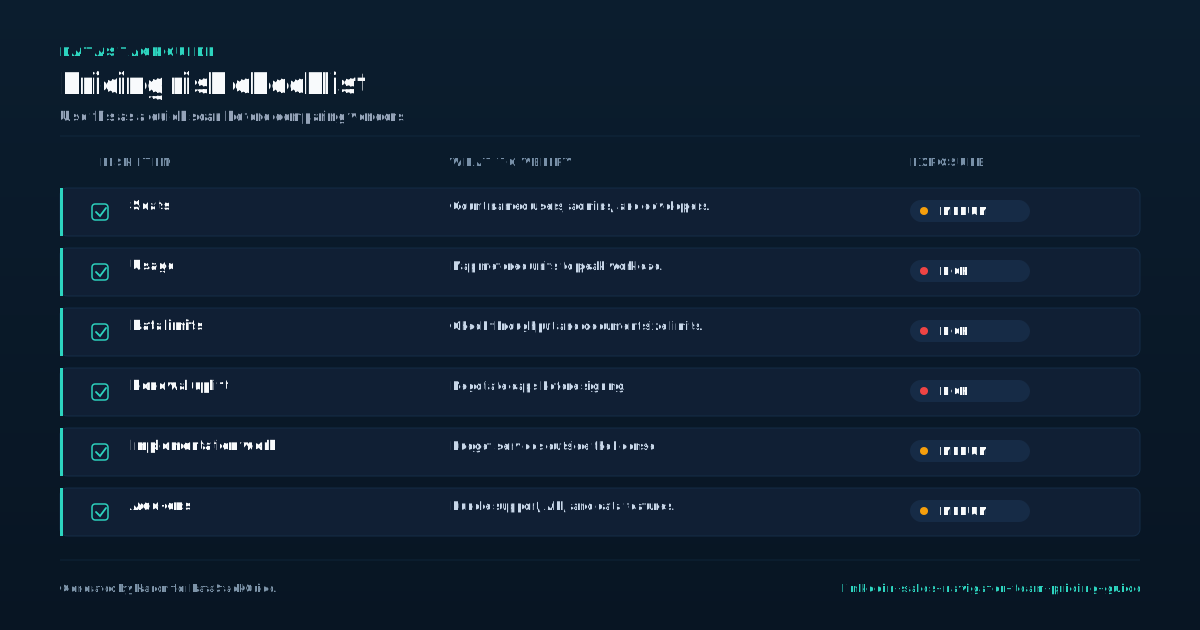
The Enterprise tier goes further, adding single sign-on, advanced CRM integrations, and dedicated support from a customer success manager. Enterprise pricing is even less transparent and is typically negotiated for larger organizations with 50 or more seats. One thing to watch: LinkedIn sometimes requires annual contracts with auto-renewal clauses.
You should ask about renewal terms before signing, not after. Another factor is that LinkedIn may offer discounts for multi-year commitments or for bundling Sales Navigator with other LinkedIn products like Recruiter or Marketing Solutions. If you only need Sales Navigator, push back on any attempt to bundle products you will not use.
The pricing conversation should start with your seat count and your required features, then move to contract length and payment terms.
Evaluating Your Team's Needs
Before you talk to a LinkedIn sales rep, you need a clear picture of what your team actually needs from Sales Navigator. Start with seat count. How many sellers will use the tool regularly?
- Not how many people on your team have a LinkedIn account, but how many will log in, run searches, save leads, and send InMail messages each week.
- Giving seats to people who rarely use the tool is a common way teams waste money.
- If your team sells into large enterprise accounts with long sales cycles, the account-level targeting and relationship mapping features in Sales Navigator may justify the cost.
Next, think about your sales process. If your team sells transactional products to small businesses, you may get less value from those features and more value from basic lead search and InMail. Consider your CRM setup. Sales Navigator integrates with Salesforce, HubSpot, and a few other platforms, but the depth of integration varies by plan.
If CRM sync is a requirement, make sure the plan you are evaluating supports it. Think about your messaging volume. How many InMail credits does each rep need per month?
The Advanced Plus plan includes more credits than the individual plan, but if your team sends a high volume of cold messages, you may need to negotiate additional credits. Finally, set a budget range before you enter pricing discussions.
If you know what you are willing to pay per seat per year, you can have a grounded conversation with the rep instead of reacting to whatever number they put in front of you.
Features and Functionality
The features that matter most for team pricing decisions are the ones that change how your team works together, not the ones that just add convenience. Shared lead and account lists are a core team feature. They let multiple reps collaborate on the same target accounts without duplicating effort or stepping on each other's outreach.
- If your team runs account-based sales motions, this feature alone may justify the jump from individual to team pricing.
- CRM sync is another feature that shifts from nice-to-have to requirement at the team level.
- With CRM sync, leads and accounts saved in Sales Navigator can flow into your CRM, and CRM data can inform your LinkedIn searches.
This reduces manual data entry and keeps your sales records current. Role-based permissions matter for larger teams. They let administrators control who can see shared lists, who can export data, and who can manage seats. Without these controls, you risk data leaking out of the organization or reps accidentally overwriting each other's work.
Reporting dashboards give sales managers visibility into how the team is using the tool: who is logging in, who is saving leads, who is sending InMail. This helps identify reps who need training and reps who are getting value. InMail credits are the feature most reps care about day to day.
More credits mean more outreach capacity. But credits alone do not justify a plan upgrade if your team is not actually using them. Look at your current outreach volume before assuming you need the higher credit allotment.
Integrations and Add-ons
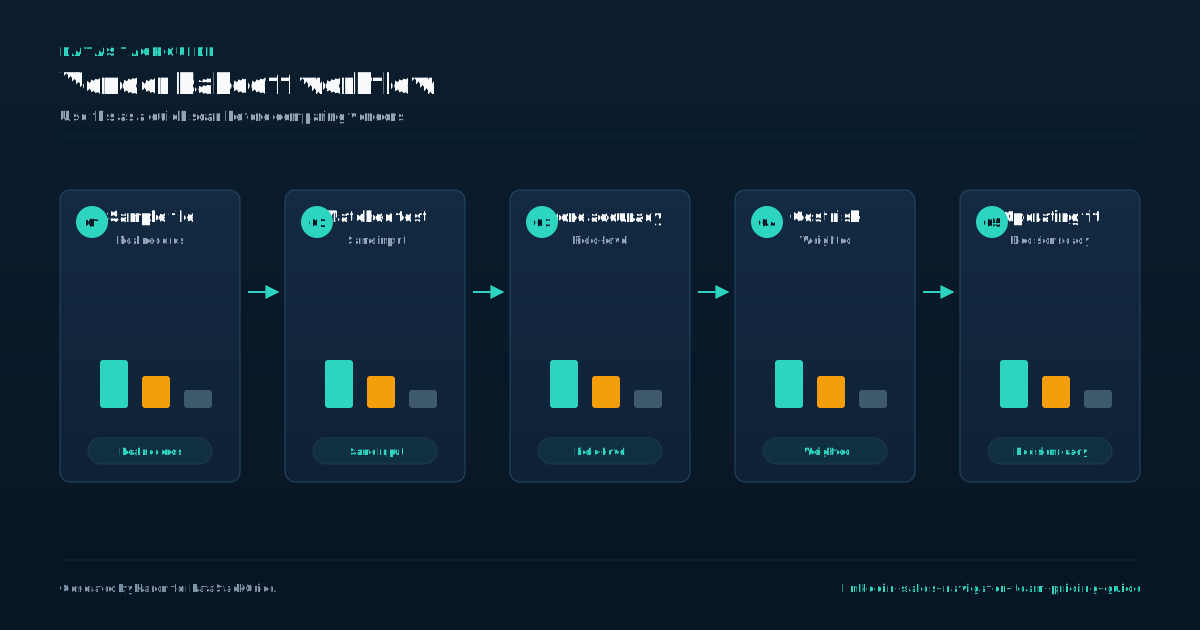
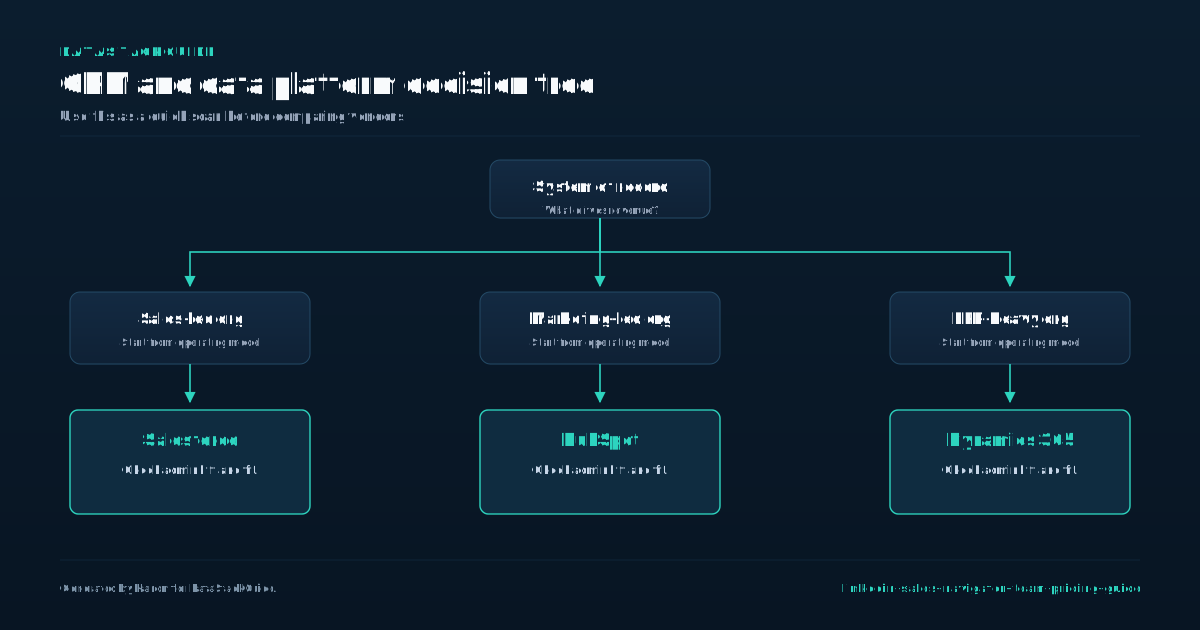
Sales Navigator does not exist in a vacuum. Most teams use it alongside a CRM, a sales engagement platform, and possibly other LinkedIn products. The integrations available to you depend on which plan you choose.
- The Advanced Plus plan includes CRM sync with major platforms, but deeper integrations, such as automated data capture or custom field mapping, may require the Enterprise tier.
- If your CRM is not one of the major platforms, check compatibility before you commit to a plan.
- LinkedIn also offers add-ons that can increase your total cost.
Additional InMail credits are the most common add-on. If your team burns through the included credits each month, you can buy more, but this adds to your per-seat cost. Another add-on is LinkedIn Learning access, which some plans include and others do not.
If training is important to your team, ask whether it is bundled or priced separately. Some companies bundle Sales Navigator with LinkedIn Recruiter or Marketing Solutions. If you use those products, bundling can reduce your total spend. If you do not, bundling adds cost for tools you will not touch.
When you evaluate integrations, focus on the ones your team will actually use every day. A long list of integration partners looks good on a marketing page, but if your team only needs Salesforce sync and InMail, the rest of the list does not affect your decision.
Ask the LinkedIn rep to confirm which integrations are included in your specific plan and which require an upgrade or additional fee.
Case Studies and Success Stories
LinkedIn publishes case studies showing companies that increased pipeline or closed more deals after adopting Sales Navigator. These stories are useful for understanding how the tool can work, but you should read them with a skeptical eye.
- Most published case studies highlight best-case scenarios and do not mention the teams that adopted the tool and saw no measurable improvement.
- When you look at case studies, pay attention to the details that match your situation.
- A company with a similar team size, target market, and sales cycle is more relevant than a company in a different industry with a completely different go-to-market model.
Look for specifics: how many seats did they buy, how long did it take to see results, what metrics did they track? If the case study only says pipeline increased without any numbers, it is marketing, not evidence. Talk to peers at other companies who use Sales Navigator.
Ask what they pay per seat, what plan they are on, and whether they would buy it again at the same price. This kind of ground-level feedback is more reliable than vendor-published success stories. Also ask about adoption.
Many companies buy Sales Navigator, give it to their team, and then find that only a few reps actually use it regularly. Low adoption kills the return on investment regardless of how good the features are.
If you cannot commit to driving adoption through training and accountability, the tool may not be worth the team-level pricing.
Implementation and Onboarding
Buying Sales Navigator is the easy part. Getting your team to use it is harder. Implementation starts with account setup.
- You need to assign seats, configure permissions, and connect your CRM if you are using sync.
- LinkedIn provides onboarding support for team plans, but the quality and depth of that support varies.
- Enterprise customers get a dedicated customer success manager.
Advanced Plus customers may get a shorter onboarding sequence or self-service resources. Ask your rep what onboarding is included before you sign. Once accounts are set up, the next step is training. Sales Navigator has a learning curve.
Reps who have only used regular LinkedIn will not automatically know how to build saved searches, use boolean filters, or manage lead lists. Plan to run at least two training sessions in the first month: one on basic search and list building, and one on InMail outreach and CRM sync.
Assign someone on your team to own adoption. This person should track login frequency, list creation, and InMail usage. If reps are not logging in, find out why. Some reps may not see the value because their territory is not well represented on LinkedIn.
Others may need more training on specific features. Set a 90-day review point. After three months, evaluate whether the tool is generating pipeline or saving time. If it is not, figure out whether the problem is adoption, training, or fit.
Do not wait until renewal to assess value. By then, you will have spent a full year's budget without a clear picture of return.
Decision Framework
To decide whether Sales Navigator team pricing is worth it, run through a simple framework. First, confirm your team size and seat count. If you have fewer than five sellers who will use the tool regularly, the individual Advanced plan may be more cost-effective than the team plan.
- If shared lists, CRM sync, and admin controls are requirements, you need at least the Advanced Plus plan.
- If you also need single sign-on, advanced integrations, or dedicated support, you are looking at Enterprise.
- If your team sends fewer than 20 InMail messages per rep per month, the included credits may be enough.
Second, list the features your team needs. Third, estimate your InMail usage. If you send more, factor in the cost of additional credits. Fourth, set a budget.
Know what you are willing to pay per seat per year before you talk to a rep. Use the published Advanced plan price as a reference point and expect the team plan to cost more per seat. Fifth, negotiate.
Ask for multi-year discounts, ask to waive setup fees, and ask about bundling if you use other LinkedIn products. Sixth, plan for adoption. If you cannot commit to training and accountability, do not buy the team plan. A tool that sits unused is a waste of budget regardless of the price.
Finally, build a renewal review into your calendar 90 days before your contract ends. This gives you time to renegotiate or cancel before auto-renewal kicks in.
Sources
Frequently Asked Questions
What is the cost of LinkedIn Sales Navigator for a team of 10 users?
LinkedIn does not publish exact team pricing. The Advanced Plus plan requires a custom quote based on seat count, contract length, and features. For 10 users, expect a per-seat cost higher than the individual Advanced plan.
Contact LinkedIn sales for a quote, and negotiate based on your commitment length.
Can I try LinkedIn Sales Navigator for free?
Yes. LinkedIn offers a free trial of Sales Navigator, typically for one month. The trial gives you access to Advanced features so you can test the tool before committing to a team plan.
Sign up through the LinkedIn Sales Navigator website.
How does LinkedIn Sales Navigator integrate with other LinkedIn tools?
Sales Navigator integrates with LinkedIn Recruiter and Marketing Solutions through bundling options. It also connects with external CRMs like Salesforce and HubSpot. The depth of CRM integration depends on your plan, with Enterprise offering the most advanced sync features.
Can I customize my LinkedIn Sales Navigator pricing plan?
Yes. LinkedIn offers customized pricing for teams and enterprises. You can negotiate seat count, contract length, InMail credit allotments, and add-on features. Large teams may get better per-seat rates by committing to multi-year contracts or bundling with other LinkedIn products.
What kind of support does LinkedIn offer for Sales Navigator users?
Support varies by plan. Advanced Plus users get access to online documentation, webinars, and standard customer support. Enterprise users get a dedicated customer success manager and priority support.
Ask your LinkedIn rep what level of onboarding and ongoing support is included in your specific plan.

Rome Thorndike
Rome Thorndike is the CEO & Founder of Provyx, which provides GTM intelligence and data validation for healthcare companies, including EngagedMD and BTL Industries. He led sales at Datajoy, acquired by Databricks, and sold analytics and enterprise platforms at Microsoft and Salesforce.
Connect on LinkedIn